> ## Documentation Index
> Fetch the complete documentation index at: https://docs.moneydevkit.com/llms.txt
> Use this file to discover all available pages before exploring further.
# Products
> Create and manage products for checkouts in the moneydevkit dashboard
Products are pre-configured items you can sell through moneydevkit. Instead of specifying amount and description for each checkout, you can reference a product by ID and the checkout will use the product's price and details.
## What are Products?
Products let you define reusable items with fixed or variable pricing. When you create a checkout using a product, the checkout automatically uses the product's name, description, and price configuration.
## Products Dashboard
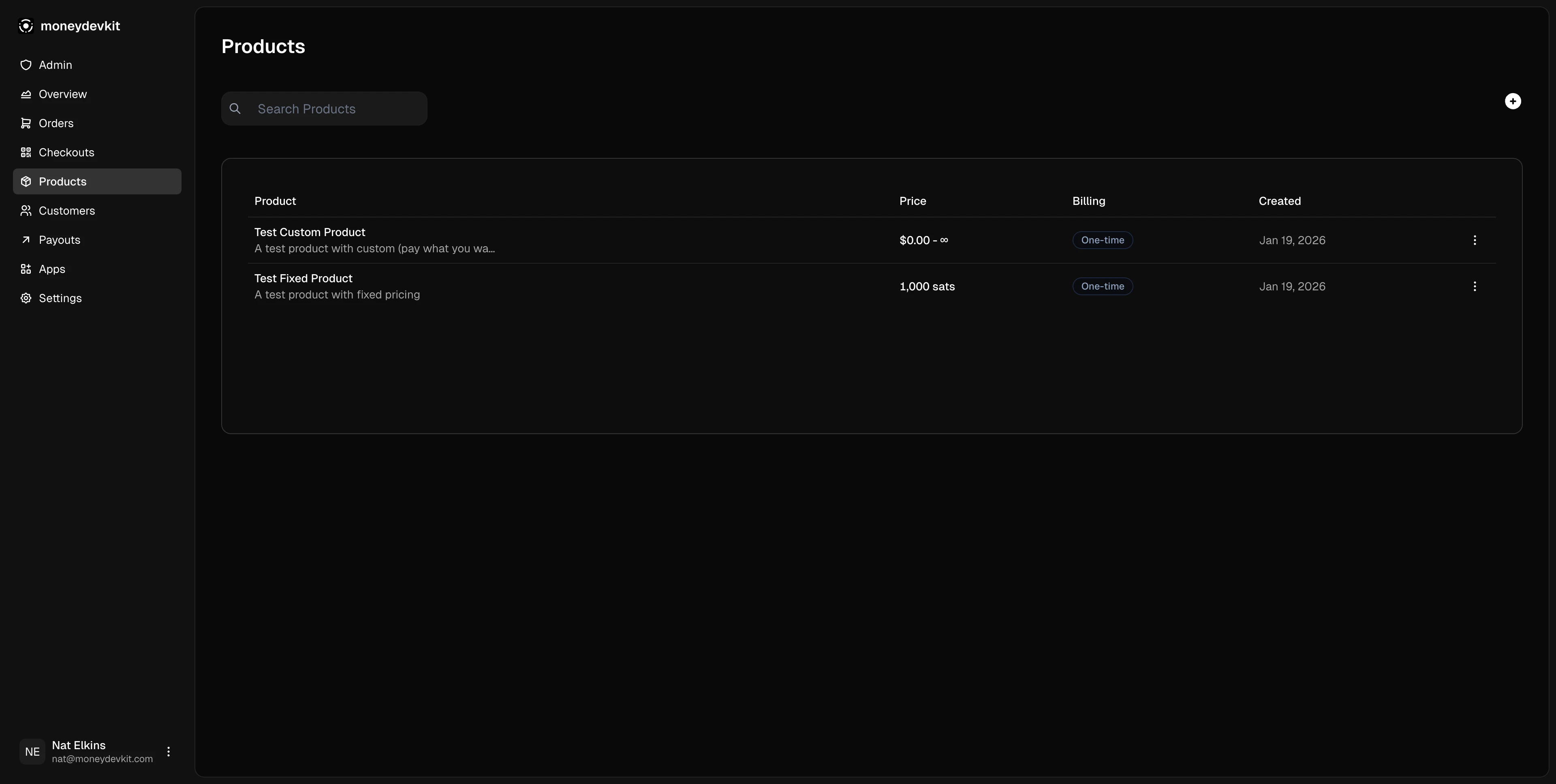
The products page in your [moneydevkit dashboard](https://moneydevkit.com/dashboard/products) displays all your products:
Each product shows:
* **Product name** and description
* **Price** - Fixed amount or "Pay what you want" range
* **Billing** - One-time
* **Created date**
* **Actions** - View details, edit, or delete
## Creating a Product
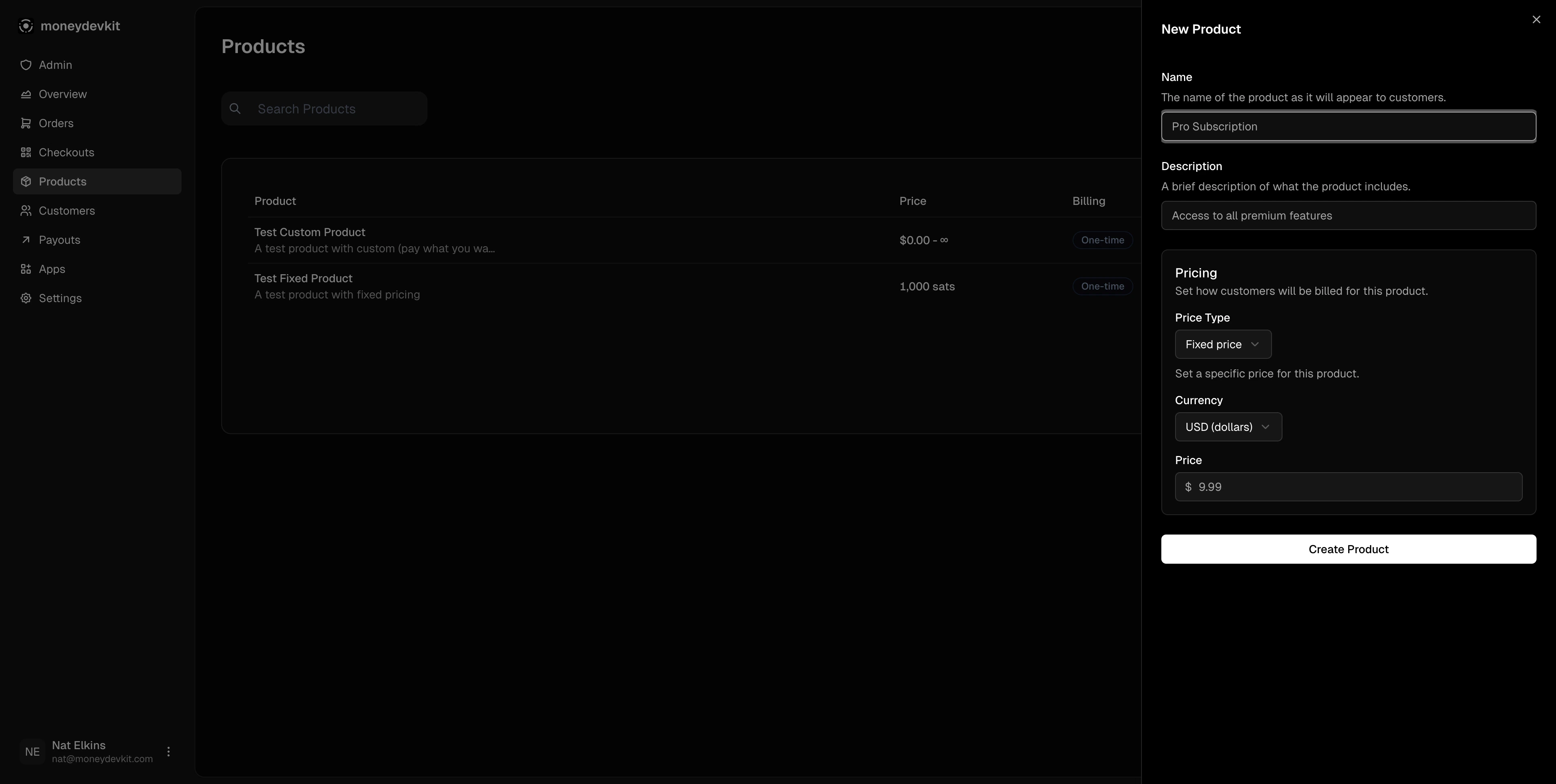
1. Navigate to Products in the dashboard
2. Click the **+** button in the top right
3. Fill in the product details:
* **Name** - Product name shown to customers
* **Description** - Brief description of what's included
* **Price Type** - Fixed price or Pay what you want
* **Currency** - USD (dollars) or SAT (satoshis)
* **Price** - Amount (for fixed price products)
4. Click **Create Product**
## Pricing Options
| Type | Description | Use Case |
| --------------------- | ----------------------- | --------------------------------- |
| **Fixed price** | Set specific amount | Standard products, subscriptions |
| **Pay what you want** | Customer chooses amount | Donations, tips, pay-what-you-can |
## Product Details
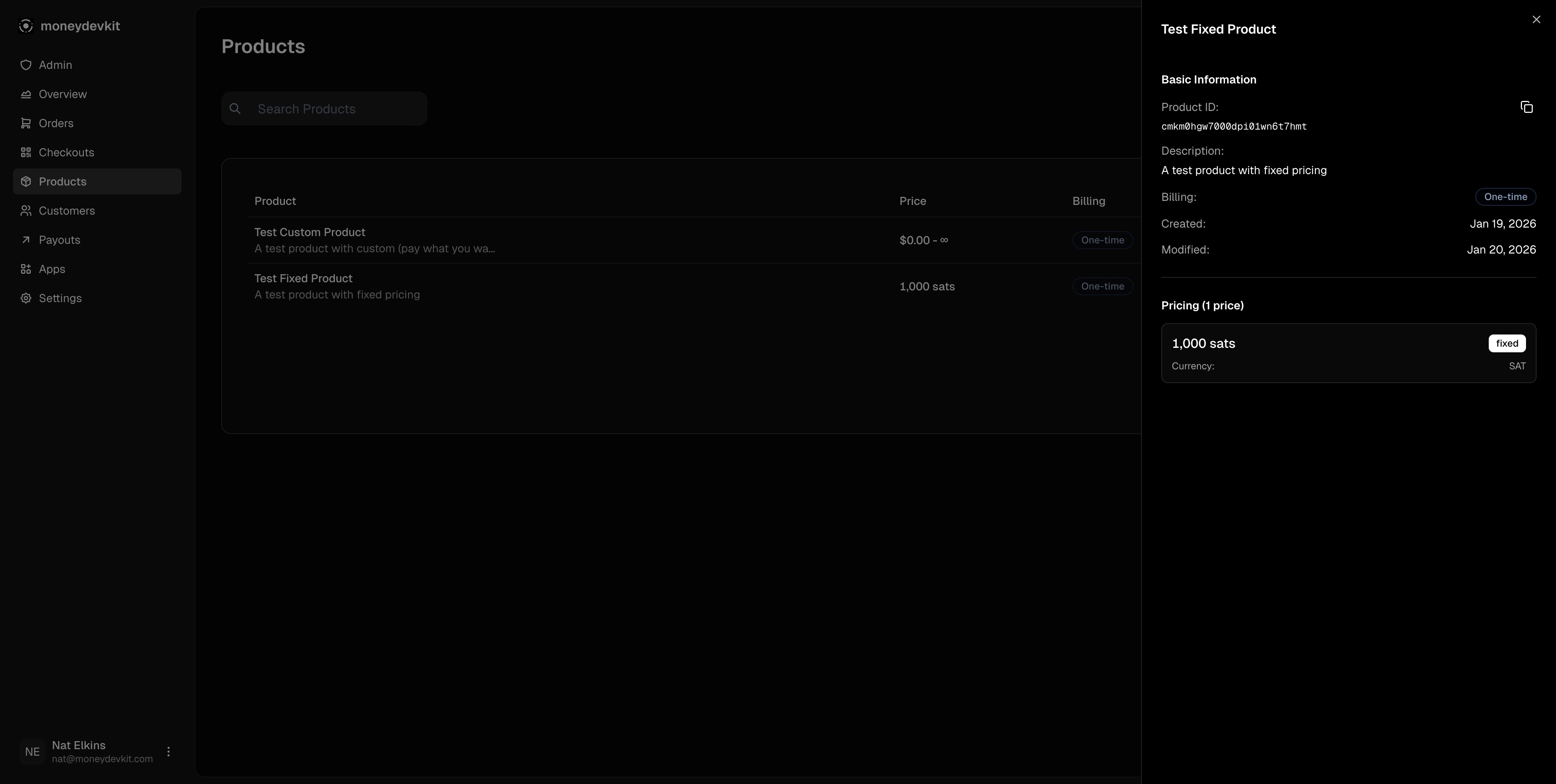
Click any product to view its details in a sidebar:
* **Product ID** - Unique identifier (click to copy)
* **Description** - Product description
* **Billing** - One-time or subscription interval
* **Created/Modified** - Timestamps
* **Pricing** - Price amount, type, and currency
## Using Products in Code
### Fetch Available Products
```tsx theme={null}
import { useProducts } from '@moneydevkit/nextjs'
function ProductList() {
const { products, isLoading, error } = useProducts()
if (isLoading) return
)
}
```
When using product checkouts, you don't need to specify `amount` or `currency` - these are automatically pulled from the product's price configuration.
## Checkout Types
| Type | Description | Required Fields |
| ------------------ | --------------------------------------------- | ---------------------- |
| `type: 'PRODUCTS'` | Sell products from your dashboard | `product` (product ID) |
| `type: 'AMOUNT'` | Dynamic amounts for donations, tips, invoices | `amount`, `currency` |
Use products when you have fixed catalog items. Use amount checkouts for dynamic pricing scenarios like invoices or custom quotes.
## Pay What You Want (CUSTOM prices)
Products can have CUSTOM prices that let customers choose their own amount. When a checkout includes a product with a CUSTOM price, the checkout UI automatically shows an amount input field:
```tsx theme={null}
const result = await createCheckout({
type: 'PRODUCTS',
product: customPriceProductId, // Product configured with CUSTOM price in dashboard
successUrl: '/checkout/success',
})
```
The customer enters their desired amount during checkout. For USD, amounts are in dollars (converted to cents internally). For SAT, amounts are in satoshis.
See the [Replit integration guide](/replit) or [Next.js integration guide](/nextjs) for complete setup instructions.
 Each product shows:
* **Product name** and description
* **Price** - Fixed amount or "Pay what you want" range
* **Billing** - One-time
* **Created date**
* **Actions** - View details, edit, or delete
## Creating a Product
Each product shows:
* **Product name** and description
* **Price** - Fixed amount or "Pay what you want" range
* **Billing** - One-time
* **Created date**
* **Actions** - View details, edit, or delete
## Creating a Product
 1. Navigate to Products in the dashboard
2. Click the **+** button in the top right
3. Fill in the product details:
* **Name** - Product name shown to customers
* **Description** - Brief description of what's included
* **Price Type** - Fixed price or Pay what you want
* **Currency** - USD (dollars) or SAT (satoshis)
* **Price** - Amount (for fixed price products)
4. Click **Create Product**
## Pricing Options
| Type | Description | Use Case |
| --------------------- | ----------------------- | --------------------------------- |
| **Fixed price** | Set specific amount | Standard products, subscriptions |
| **Pay what you want** | Customer chooses amount | Donations, tips, pay-what-you-can |
## Product Details
Click any product to view its details in a sidebar:
1. Navigate to Products in the dashboard
2. Click the **+** button in the top right
3. Fill in the product details:
* **Name** - Product name shown to customers
* **Description** - Brief description of what's included
* **Price Type** - Fixed price or Pay what you want
* **Currency** - USD (dollars) or SAT (satoshis)
* **Price** - Amount (for fixed price products)
4. Click **Create Product**
## Pricing Options
| Type | Description | Use Case |
| --------------------- | ----------------------- | --------------------------------- |
| **Fixed price** | Set specific amount | Standard products, subscriptions |
| **Pay what you want** | Customer chooses amount | Donations, tips, pay-what-you-can |
## Product Details
Click any product to view its details in a sidebar:
 * **Product ID** - Unique identifier (click to copy)
* **Description** - Product description
* **Billing** - One-time or subscription interval
* **Created/Modified** - Timestamps
* **Pricing** - Price amount, type, and currency
## Using Products in Code
### Fetch Available Products
```tsx theme={null}
import { useProducts } from '@moneydevkit/nextjs'
function ProductList() {
const { products, isLoading, error } = useProducts()
if (isLoading) return
* **Product ID** - Unique identifier (click to copy)
* **Description** - Product description
* **Billing** - One-time or subscription interval
* **Created/Modified** - Timestamps
* **Pricing** - Price amount, type, and currency
## Using Products in Code
### Fetch Available Products
```tsx theme={null}
import { useProducts } from '@moneydevkit/nextjs'
function ProductList() {
const { products, isLoading, error } = useProducts()
if (isLoading) return