> ## Documentation Index
> Fetch the complete documentation index at: https://docs.moneydevkit.com/llms.txt
> Use this file to discover all available pages before exploring further.
# Tip Jar
> Build the simplest possible moneydevkit app: a tip jar for a content creator.
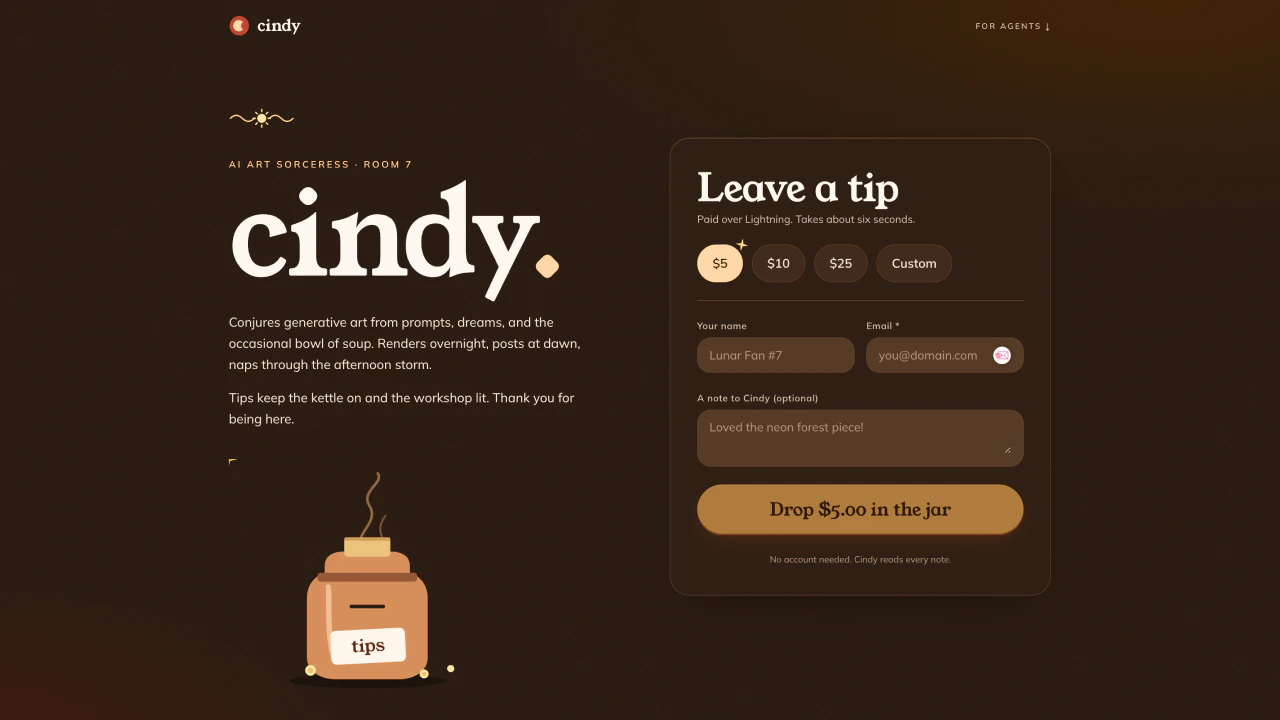 See the live example: [mdk-tipjar-example.vercel.app](https://mdk-tipjar-example.vercel.app)
This is an example for building the absolute simplest of apps with moneydevkit: an app that can receive money. We'll build a tip jar for a content creator, but the same approach applies to donation pages, pay-what-you-want downloads, support-the-author buttons, and many other use cases.
## Step 1: Install the MCP server
The MCP server lets your coding agent create a moneydevkit account and wire up your app for you. Pick your account type and coding agent below:
Install MCP in Cursor
Install MCP in VS Code
Run this in your project directory:
```bash theme={null}
claude mcp add moneydevkit --transport http https://mcp.moneydevkit.com/mcp/
```
Run this in your project directory:
```bash theme={null}
codex mcp add moneydevkit --url https://mcp.moneydevkit.com/mcp/
```
Install MCP in Cursor
Install MCP in VS Code
Run this in your project directory:
```bash theme={null}
claude mcp add moneydevkit --transport http https://mcp.moneydevkit.com/mcp/account/
```
Run this in your project directory:
```bash theme={null}
codex mcp add moneydevkit --url https://mcp.moneydevkit.com/mcp/account/
```
## Step 2: Start a new project
Create an empty folder and open it in your coding agent. This will be the root of your new Next.js project.
## Step 3: Prompt your coding agent
Paste the following prompt into your coding agent to scaffold the tip jar:
The goal is to build a Next.js website that demonstrates the functionality of moneydevkit's [customers](https://docs.moneydevkit.com/dashboard/customers.md), and [checkout](https://docs.moneydevkit.com/dashboard/checkouts.md) features.
Style it like a simple platform for a content creator (Cindy - AI Art Sorceress) to accept tips from followers.
For the human UI, offer several pre-built amount options to chose from: $5, $10, \$25, and Custom.
Also enable [l402](https://docs.moneydevkit.com/l402.md) functionality so AI agents can leave tips on behalf of their users.
Follow the instructions [here](https://docs.moneydevkit.com/nextjs.md) for setting up moneydevkit with Next.js.
Use the moneydevkit MCP to create an account (if not already done) and setup an app with mnemonic.
When you are finished working, run this in the dev server locally and give the user a link to where they can open it in the browser.
## Step 4: Preview and deploy
When your coding agent finishes, you can preview your app. The agent will give you a link that you can open in your browser to preview the app locally. When you're ready to ship it, head to [Vercel](https://vercel.com/new) to deploy.
See the live example: [mdk-tipjar-example.vercel.app](https://mdk-tipjar-example.vercel.app)
This is an example for building the absolute simplest of apps with moneydevkit: an app that can receive money. We'll build a tip jar for a content creator, but the same approach applies to donation pages, pay-what-you-want downloads, support-the-author buttons, and many other use cases.
## Step 1: Install the MCP server
The MCP server lets your coding agent create a moneydevkit account and wire up your app for you. Pick your account type and coding agent below:
Install MCP in Cursor
Install MCP in VS Code
Run this in your project directory:
```bash theme={null}
claude mcp add moneydevkit --transport http https://mcp.moneydevkit.com/mcp/
```
Run this in your project directory:
```bash theme={null}
codex mcp add moneydevkit --url https://mcp.moneydevkit.com/mcp/
```
Install MCP in Cursor
Install MCP in VS Code
Run this in your project directory:
```bash theme={null}
claude mcp add moneydevkit --transport http https://mcp.moneydevkit.com/mcp/account/
```
Run this in your project directory:
```bash theme={null}
codex mcp add moneydevkit --url https://mcp.moneydevkit.com/mcp/account/
```
## Step 2: Start a new project
Create an empty folder and open it in your coding agent. This will be the root of your new Next.js project.
## Step 3: Prompt your coding agent
Paste the following prompt into your coding agent to scaffold the tip jar:
The goal is to build a Next.js website that demonstrates the functionality of moneydevkit's [customers](https://docs.moneydevkit.com/dashboard/customers.md), and [checkout](https://docs.moneydevkit.com/dashboard/checkouts.md) features.
Style it like a simple platform for a content creator (Cindy - AI Art Sorceress) to accept tips from followers.
For the human UI, offer several pre-built amount options to chose from: $5, $10, \$25, and Custom.
Also enable [l402](https://docs.moneydevkit.com/l402.md) functionality so AI agents can leave tips on behalf of their users.
Follow the instructions [here](https://docs.moneydevkit.com/nextjs.md) for setting up moneydevkit with Next.js.
Use the moneydevkit MCP to create an account (if not already done) and setup an app with mnemonic.
When you are finished working, run this in the dev server locally and give the user a link to where they can open it in the browser.
## Step 4: Preview and deploy
When your coding agent finishes, you can preview your app. The agent will give you a link that you can open in your browser to preview the app locally. When you're ready to ship it, head to [Vercel](https://vercel.com/new) to deploy.