Products are pre-configured items you can sell through moneydevkit. Instead of specifying amount and description for each checkout, you can reference a product by ID and the checkout will use the product’s price and details.
What are Products?
Products let you define reusable items with fixed or variable pricing. When you create a checkout using a product, the checkout automatically uses the product’s name, description, and price configuration.
Products Dashboard
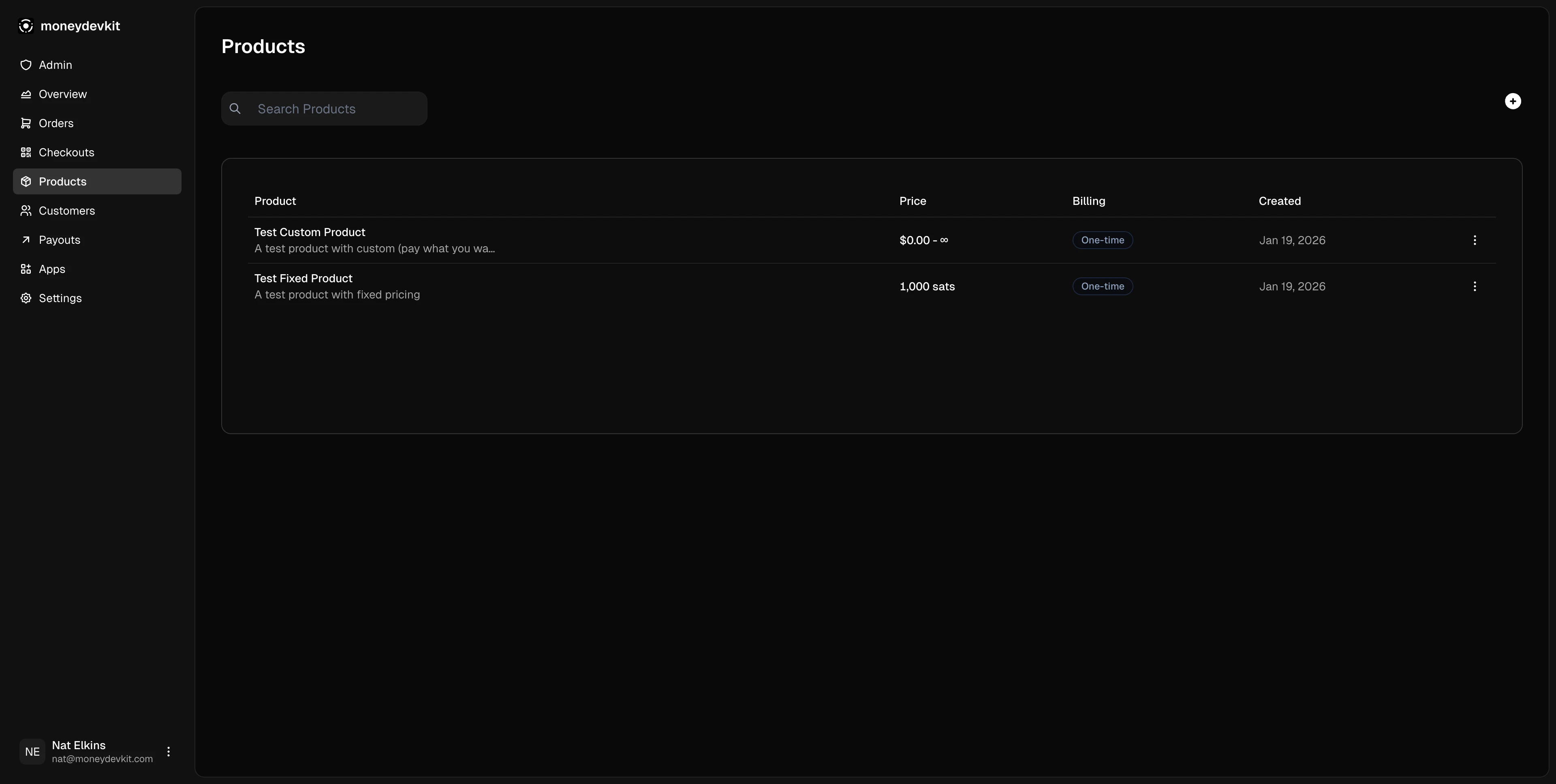
The products page in your moneydevkit dashboard displays all your products:
Each product shows:
- Product name and description
- Price - Fixed amount or “Pay what you want” range
- Billing - One-time
- Created date
- Actions - View details, edit, or delete
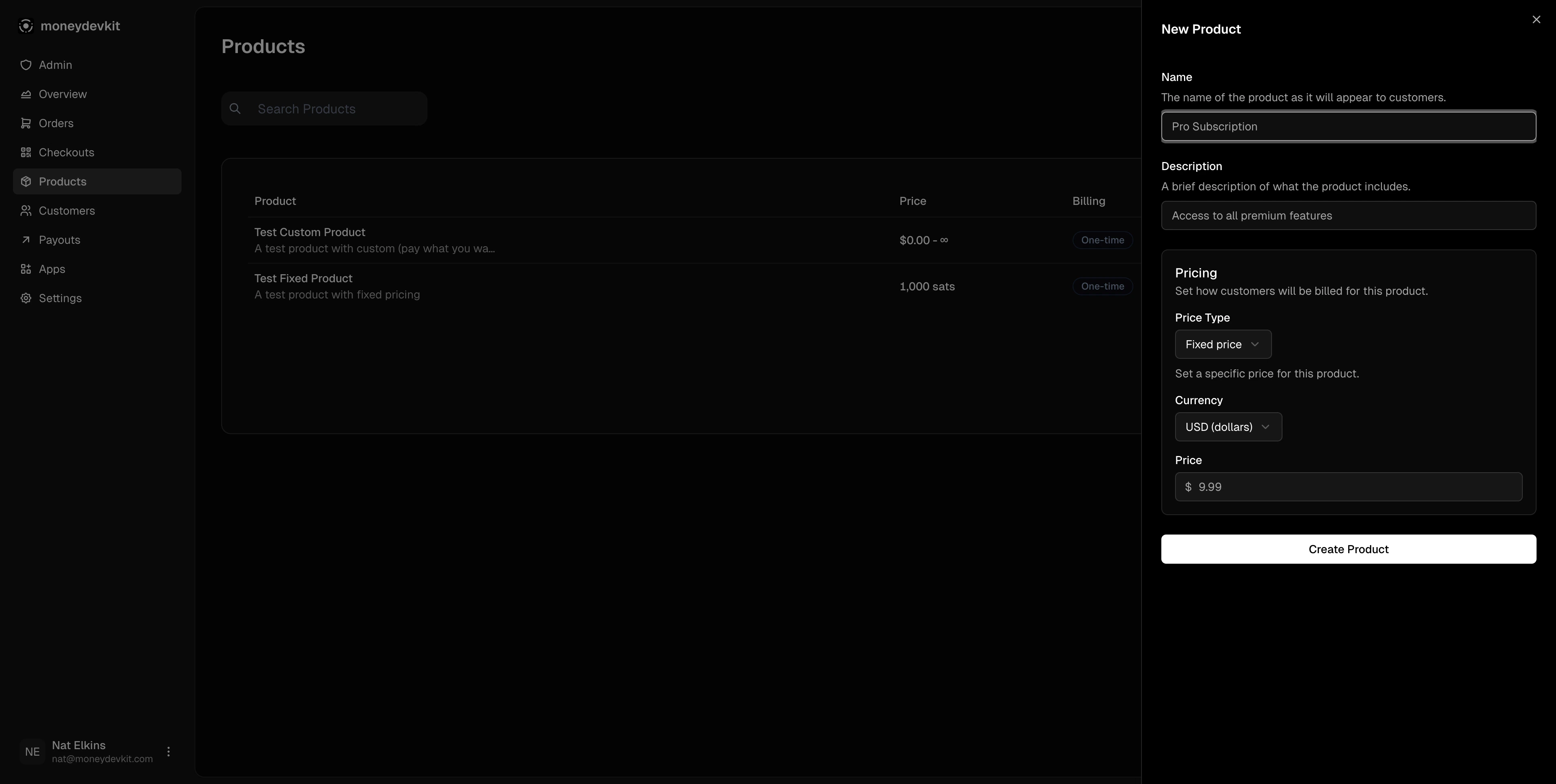
Creating a Product
- Navigate to Products in the dashboard
- Click the + button in the top right
- Fill in the product details:
- Name - Product name shown to customers
- Description - Brief description of what’s included
- Price Type - Fixed price or Pay what you want
- Currency - USD (dollars) or SAT (satoshis)
- Price - Amount (for fixed price products)
- Click Create Product
Pricing Options
Product Details
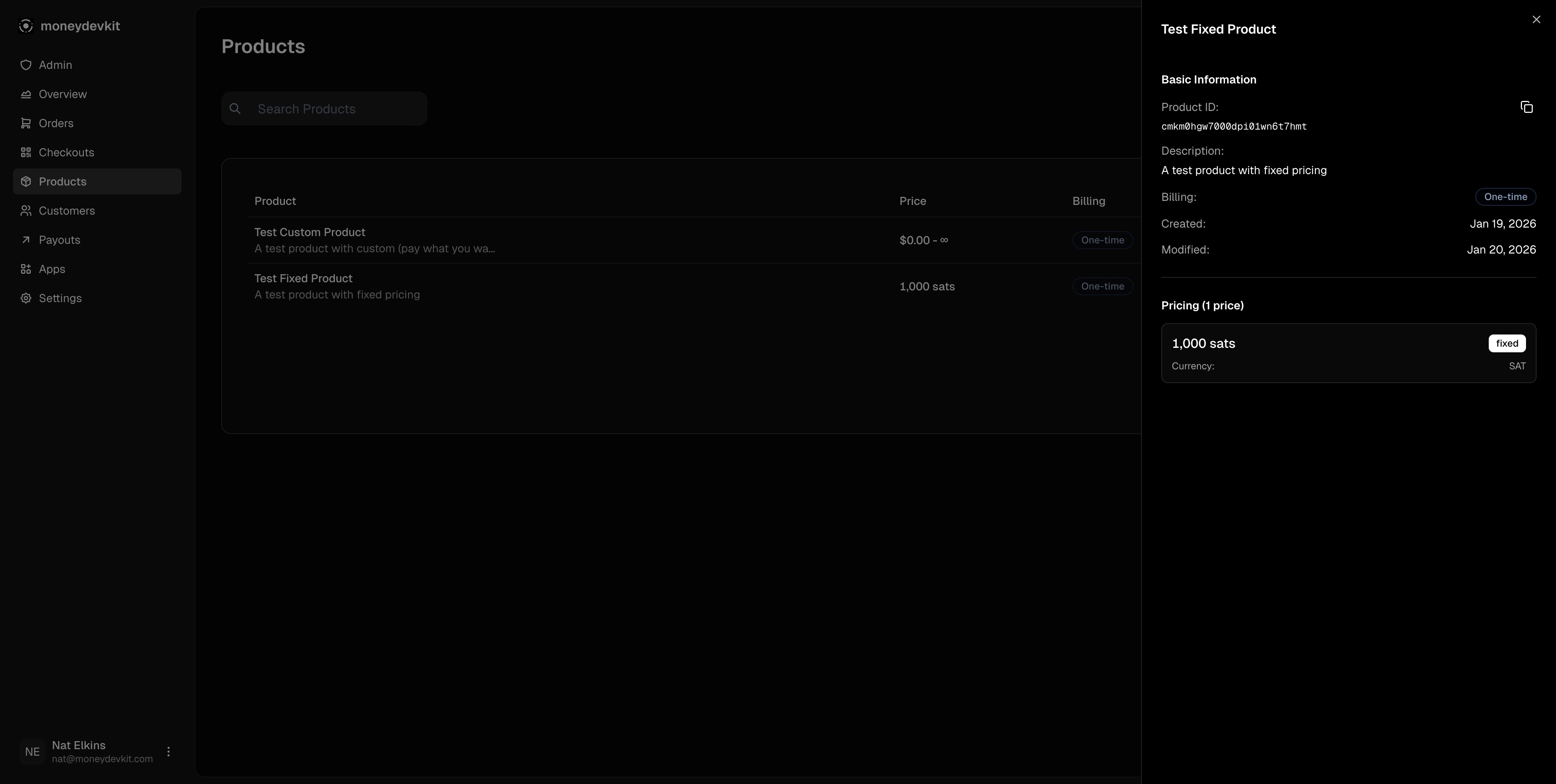
Click any product to view its details in a sidebar:
- Product ID - Unique identifier (click to copy)
- Description - Product description
- Billing - One-time or subscription interval
- Created/Modified - Timestamps
- Pricing - Price amount, type, and currency
Using Products in Code
Fetch Available Products
Create a Product Checkout
When using product checkouts, you don’t need to specify amount or currency - these are automatically pulled from the product’s price configuration.
Checkout Types
Use products when you have fixed catalog items. Use amount checkouts for dynamic pricing scenarios like invoices or custom quotes.
Pay What You Want (CUSTOM prices)
Products can have CUSTOM prices that let customers choose their own amount. When a checkout includes a product with a CUSTOM price, the checkout UI automatically shows an amount input field:
The customer enters their desired amount during checkout. For USD, amounts are in dollars (converted to cents internally). For SAT, amounts are in satoshis.
See the Replit integration guide or Next.js integration guide for complete setup instructions.